
How to turn a PDF into a website
To turn a PDF into a website, don't put the file on a page. Take it apart. Give each section its own page, rewrite what only makes sense on paper, and add the one action you want a reader to take next. Then read every page on a phone before you publish, and keep the PDF as a download for people who print.
Google can index the text of a PDF, but the whole brochure then sits at one address. Someone searching for your payroll service may land on page one of twelve, zooming in on a phone. On a website, that topic gets its own address, its own title and a layout that fits the screen.
What the PDF already gives you, and what the site still needs
The wording, photos and order of topics are finished. The rest is new work:
| Already in the PDF | Still to decide for the site |
|---|---|
| Section headings | Which sections become pages, and the menu that joins them |
| Body text written for print | Shorter paragraphs, and links where the text says "see page 7" |
| A price table laid out by a designer | The same prices as text that fits a narrow screen |
| A phone number on the back cover | A contact action on every page |
| A print date | A plan for who updates the site, and where |
The sample brochure in this guide
Sierra Pines Bookkeeping is a made-up practice in Sacramento, California. Its people, pages and prices below are sample content written for this guide. The founders, Laura Chen and Daniel Okafor, email a twelve-page brochure, sierra-pines-services-2026.pdf, to every prospective client.
The cover carries the tagline "Clear books, calmer months". Two details matter later: the price table on page 7 is a single image, and the back cover lists Daniel's cell number next to "Prices valid through December 2026".
Map the brochure to pages
Write the page map before you open Studio. It sets the menu, the addresses and where each passage goes.
| Brochure pages | Page on the site | Decision |
|---|---|---|
| 1, cover | Home | The tagline becomes a text headline, with a "Book an intro call" button and links to each service. |
| 2 and 3, founders and how they work | About | Merge them. The three-step process becomes a numbered list. |
| 4 to 6, three services | Monthly bookkeeping, Payroll, Year-end package | One page per service, each ending with a link to Pricing. |
| 7, packages and prices | Pricing | Retype the prices from the image as text. Show the "valid through" date. |
| 8, client quotes | The service page each quote mentions | Only quotes a client approved in writing. Drop the rest. |
| 9, questions | The foot of each service page | Payroll questions sit on Payroll, not on a separate FAQ page. |
| 10, checklist | New clients | A plain list, with the PDF as a printable download. |
| 11 and 12, contact and back cover | Contact, plus a footer on every page | Use the office line, not Daniel's cell. Link the address to a map. |
Eight pages, and a menu of five items: Services, Pricing, About, New clients, Contact. Merge a page that would hold one short paragraph. Split one that covers two topics a reader would search for separately.
Stock mockup with placeholder text, not an Exepad screen. A home page made from a brochure cover can use the same layout: a large image, a headline, and blocks that lead into the sections.
Rewrite the brochure for screens
A PDF keeps its layout, while a web page reflows to fit each screen. Check the draft for anything that leans on the printed layout:
- Print references. "See page 7 for packages" becomes a link reading "Compare the three packages". Remove "overleaf", "on the facing page" and "tear off this form".
- Layout leftovers. Search for the running header "Sierra Pines | Services 2026", stray page numbers and words split at a line break, like "book- keeping", and delete them.
- Column order. The About page ran in two columns. Check that its sentences now follow in order.
- Text drawn as a picture. The price table on page 7 was an image. On the site, prices, hours and phone numbers must be real text a visitor can select.
- Long paragraphs. Cut 120-word brochure paragraphs to two or three sentences, and add a subheading every few paragraphs.
- Wide tables. The four-column package table will not fit a phone. Show one card per package, with its price and contents.
- Contact details. Turn the phone number, email address and street address into links a visitor can tap.
- Photo descriptions. Describe each photo, such as "Laura Chen reviewing a monthly report with a client". The pine-branch border on each brochure page is decoration and needs none.
- Rights. Confirm the right to reuse each image and passage online. A stock photo licensed for print may not cover the web.
If you ask the building assistant in Studio to shorten a section, compare its version with the PDF line by line. Check prices, package names and anything that reads as a promise.
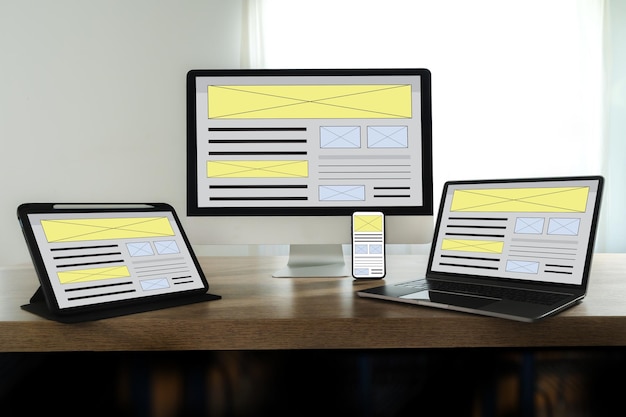
Stock photo, not an Exepad screen: one wireframe page, arranged for four screen sizes.
Give each page its own title and description
Google recommends a distinct title for every page and a description that fits that page alone. Draft both into your page map:
| Page | Title | Description |
|---|---|---|
| Payroll | Payroll for small businesses in Sacramento | Sierra Pines | Monthly payroll, pay stubs and year-end forms for small employers in Sacramento, from Sierra Pines Bookkeeping. |
| Pricing | Bookkeeping packages and prices | Sierra Pines | Compare the Essentials, Standard and Complete bookkeeping packages, with prices valid through December 2026. |
Also check each page for:
- One main heading that matches the title's topic.
- Link text that says where it goes. Google calls good anchor text "descriptive, reasonably concise, and relevant".
- The phone view first. Google indexes and ranks the mobile version of a site's content.
- A preview image and title for when the link is shared.
If the PDF already sits at an address that other sites link to, keep that file online. Put the new site's address on its cover in the next edition. None of this promises a ranking. For a longer list, see search foundations for public pages.
Checklist before you publish
Run these before the first publish, and after every later round of edits:
| What to check | How | Done when |
|---|---|---|
| Facts | Put page 7 of the PDF beside the Pricing page | Every name and price matches, or differs only where you changed it on purpose |
| Leftovers | Search the draft for "see page", "overleaf" and "Services 2026" | None remain in the page text |
| Reading order | Read About on a phone from top to bottom | Sentences from the two print columns follow each other |
| Selectable text | Try to highlight a price and the phone number | Both select as text |
| Links | Tap every menu item, in-text link and the brochure download on a phone | Each lands where its words say, the download opens the current edition, and none leads to a missing page |
| Contact | Tap the phone number and the email address | One offers a call to the office line, the other opens a message |
| Private details | Search for Daniel's cell number and any internal notes | Neither appears anywhere |
Which plan this site needs
The site mapped above is several pages, links, images and a phone number. Any plan builds and previews it, and putting a site with several pages live needs a paid plan. The same content on one page, with a section for each part and a menu that jumps between them, is a one-page site, which goes live on Free. A contact form that saves each inquiry needs a database, and a confirmation sent to the person who wrote needs email: both make it an app with data, and a custom domain needs Pro. Test the form and read the email it sends before you rely on either. The pricing page lists what each plan includes.
Nothing on the Sierra Pines site needs a model or an agent while it runs.
After publishing: decide where edits happen
The upload gave Studio a copy of the PDF as it was that day. When Laura changes the payroll price in March, the site and the PDF will not update each other. Make the site the place you edit. Treat the brochure as a print copy you refresh from the site's wording before the next print run, and swap the download on New clients at the same time.
Suppose an edit to the Pricing page breaks its package cards. Look in the versions available in Studio for one from before that change, inspect the restoration, and publish it only after review. Restoring a version does not take back inquiries already received or confirmations already emailed.
When to keep the PDF, or build something else
Keep the PDF as a download. People still print a brochure for a meeting or attach it to a proposal. Put its date in the link text, such as "Download the 2026 brochure (PDF)".
Build something else when:
- The PDF sells one offer with one action. A single page fits better: a landing page made from a PDF.
- It lists products whose prices change between editions. Read what goes wrong after the next price change before you pick a format.
- Readers look things up rather than read, as in a 40-page parts list or a member directory. Aim for a searchable app built from the PDF's tables.
- The layout is the work, as in a design portfolio. A fixed PDF can show it better than a page that reflows.
- The source is a Word file or a slide deck. Start from websites built from other file types.
For sites that don't start from a document, browse website guides by goal.
Next step: upload the brochure and paste your page map on the PDF to Website page, which hands both to Studio.