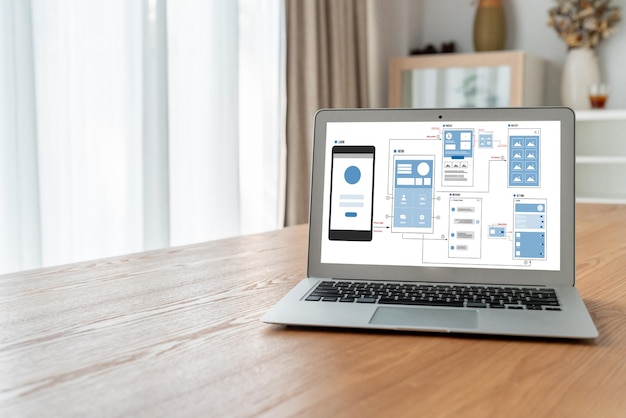
Turn a Training Deck Into an Interactive Learning App
Every HR team, every professional trainer, and every small business with more than a handful of employees has at least one training deck that has lived longer than it should have. Sixty slides on onboarding. Forty on the firm's approach to client work. Thirty on safety procedures. The deck took real effort to make. The content is good. The session runs well when somebody walks through it live with a group of new hires in a conference room.
Then the session ends. The slides are emailed out. The new hires go back to their desks. Within a week, most of what was covered has been forgotten — not because the learners were inattentive, but because the deck was a one-shot presentation and a one-shot presentation is not how learning sticks. There is no check of what was retained. There is no way to revisit a specific section. There is no signal to the training lead about which topics caused the most difficulty. And because nobody updates the deck between cohorts, the version the next group receives is slightly out of date from the version they were actually walked through.
None of this is a flaw in the deck. It is a flaw in the container. A deck is designed to be presented once. A training app is designed to be returned to. The content — the thing that took the real effort to produce — can live just as happily in a container that actually does the job.
The walkthrough, with real timestamps
Our example is a 62-slide onboarding deck for a small engineering firm. It has six sections — company history, team structure, technical standards, project workflow, tools and systems, and safety. Each section has roughly ten slides, each with speaker notes the trainer uses when presenting live.
0:00 — Upload the PowerPoint deck. The file is dropped onto the upload area. A thumbnail of each slide appears as the parser reads through it.
1:30 — Exepad extracts slides, speaker notes, and structure. Every slide is recognised. Section breaks are identified from the slide titles and the built-in section markers if the deck uses them. Speaker notes are pulled out alongside their slides, which matters — the speaker notes are often where the real explanation lives, beyond the bullet points that fit on the slide itself. Images, diagrams, and embedded videos are preserved.
3:00 — Describe what the training app should do. A single prompt. You type: "A self-paced onboarding training app. Each section is a module. At the end of each module, three to five quiz questions to check understanding. Track which modules each trainee has completed and how they scored. Require an 80% pass on each quiz before unlocking the next module. Produce a completion certificate when all modules are done."
5:00 — Review the generated app. The six sections appear as six modules. Each module contains the slides as pages, with speaker notes integrated into the page as explanatory text rather than hidden behind a presenter's mode. The quiz questions at the end of each module are drafts — generated from the content of the module itself, framed to check whether the learner has actually understood the section. The progress tracker appears in the trainee view, and the admin view is already populated with the structure to show progress per trainee.
7:00 — Refine. The quiz questions are a starting point, not a commitment. You replace three of them with your own, because you know which points new hires reliably get wrong in the live session. You reorder the modules — safety moves from last to second, because the firm wants new hires to encounter it early. You lower the pass threshold on the company-history quiz to 60% because it is a gentler module and the 80% default feels wrong for it.
9:00 — Publish with a shareable link. The training app goes live at its own URL. You invite the next cohort of new hires by email. The first new hire logs in, sees the module list, clicks into company history, works through the slides, passes the quiz, unlocks team structure, and carries on at their own pace. The live conference-room session becomes optional — a conversation on top of the training, rather than the only place the training happens.

What the training app can do that the deck cannot
The difference between a presented deck and a training app shows up in the first cohort that uses it. A handful of capabilities change the practical texture of the training.
Self-paced progress. Trainees move through at their own rhythm. The fast ones finish in half the time. The slower ones have longer on the sections they find harder. Nobody is held back by the pace of the group, and nobody is rushed past a concept they have not absorbed yet.
Knowledge checks. The quiz at the end of each module is not a test; it is a confirmation that the module has been processed. Trainees who get a question wrong see the relevant page again before moving on. The content sticks in a way that "I think I heard that during onboarding" does not.
Progress tracking per trainee. The training lead sees, at a glance, who has finished which module. When a new hire says they have completed onboarding, the statement can be checked against the tracker rather than taken on faith. When a new hire is stuck on a particular module, the tracker says so — often before the new hire is ready to admit it.
Analytics on difficulty. If eight out of ten new hires fail the third question in the technical-standards module, the question (or the content the question is checking) probably needs attention. The training lead can see this pattern without running a follow-up survey. The training improves over time because the app exposes which parts are not landing.
Always-current content. When a process changes, the change is made in the training app, in one place. Every future cohort sees the new version from their first login. There is no "is the deck I got the current one?" ambiguity, because there is no deck — there is a URL that is always the current training.
Completion certificates. At the end, a personalised certificate is issued. For compliance-adjacent training — safety, regulatory, quality — this is not a decorative touch; it is a record the firm can show when asked.
Which decks work best
Not every PowerPoint deck is a training deck in disguise. The process below works best with a specific shape of content — decks that were already deliberately structured for teaching, not decks that were thrown together for a single meeting.
Good fits. Onboarding decks for new hires. Compliance and safety training. Product training for sales teams. Professional-certification training. Sector-specific primers (how the firm handles insurance, or procurement, or regulatory submissions). Any deck that has been presented more than twice to different audiences.
Less good fits. Ad-hoc meeting decks where the content only makes sense in the context of the meeting. Strategy decks where the slides are deliberately sparse because the substance is in the room. One-off client presentations that are not intended to be returned to.
Sometimes a better fit for a different output. A dense reference manual that is nominally a deck but really wants to be a searchable knowledge base is better off in that container. The Word-to-knowledge-base walkthrough and the PDF-to-app walkthrough both cover adjacent cases. The rule of thumb is whether the learner is expected to move through the content (training app) or look things up in the content (knowledge base).

Rolling it out
Teams that have moved from live-presented decks to self-paced training apps almost always wish they had kept the live session as the second step, not replaced it. The pattern that works: have new hires complete the app in their first week on their own schedule. Then book a forty-minute conversation with the training lead at the end of the week — not to present the deck again, but to answer the questions the trainee generated while working through the app. The live session becomes shorter, richer, and more useful, because it is not re-covering ground the trainee has already absorbed.
The training lead's view of the app tells them, before the conversation, which sections the trainee found hardest. The conversation starts with those sections rather than with slide one. The hour in the conference room that used to be a monologue becomes a dialogue, and the retention improves not because the content is different but because the container puts the content in the right place at the right time.
Getting started
If you have an onboarding deck, a safety deck, or a product training deck that has been presented more than twice, the fastest way to find out whether this fits is to upload the pptx file and see what comes back. The original deck stays intact. The training app is a separate artefact with its own URL. You can run one cohort through it and decide on the basis of their experience — not on the basis of how the output looks in a preview.
If your source material is a PDF manual rather than a slide deck, the PDF-to-app walkthrough is the closer match. If it is a long-form Word document — an employee handbook, a method guide — the Word-to-knowledge-base walkthrough covers that case directly.
The tool page, with examples of training apps published from slide decks, is at /convert-powerpoint-to-training-app.